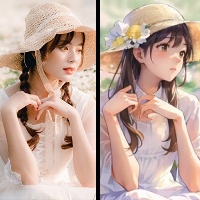
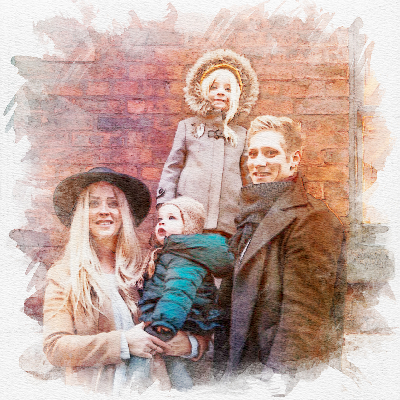
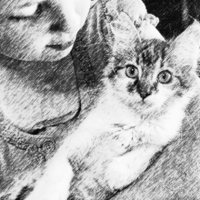

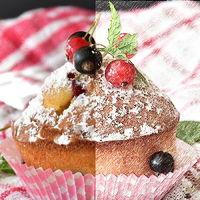
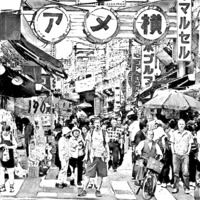
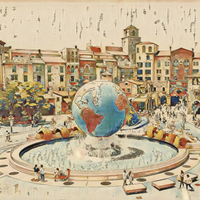
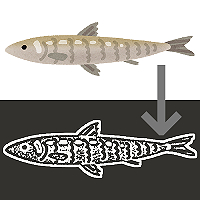
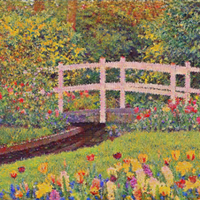
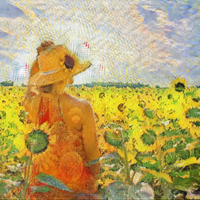
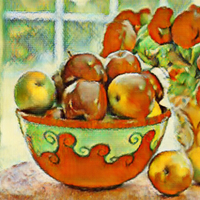
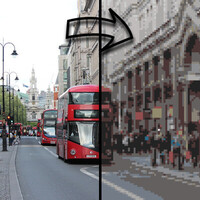
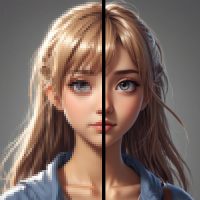

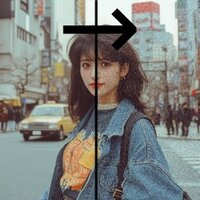
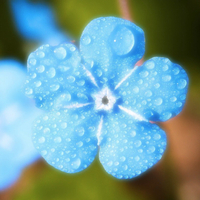

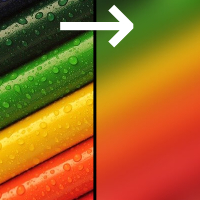
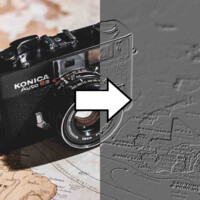
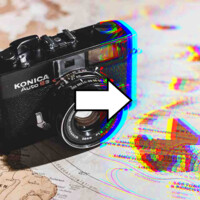
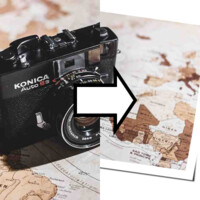
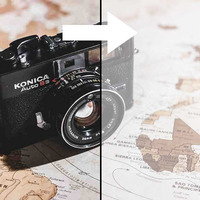
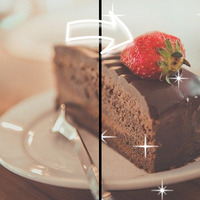

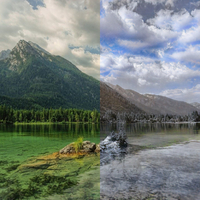
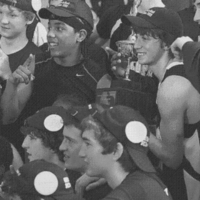
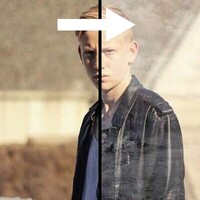
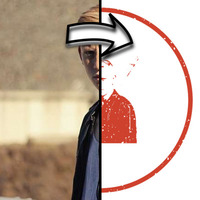
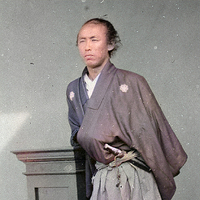
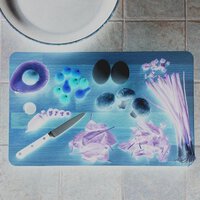
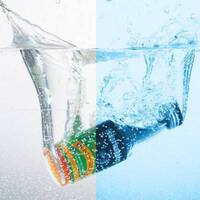
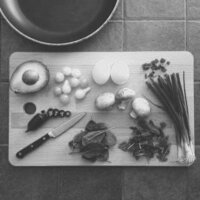
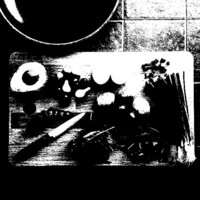


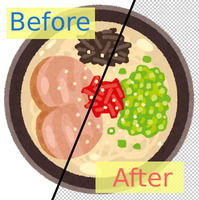
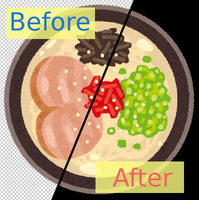
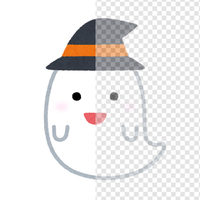
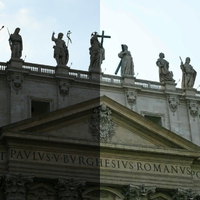
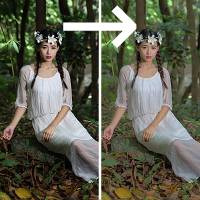
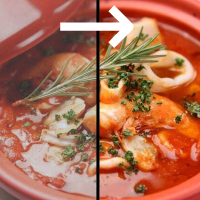
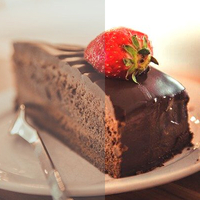

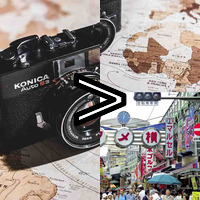
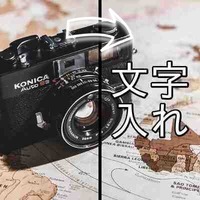
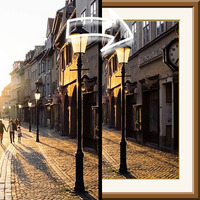
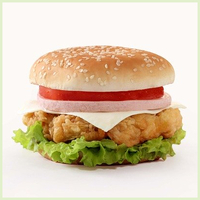



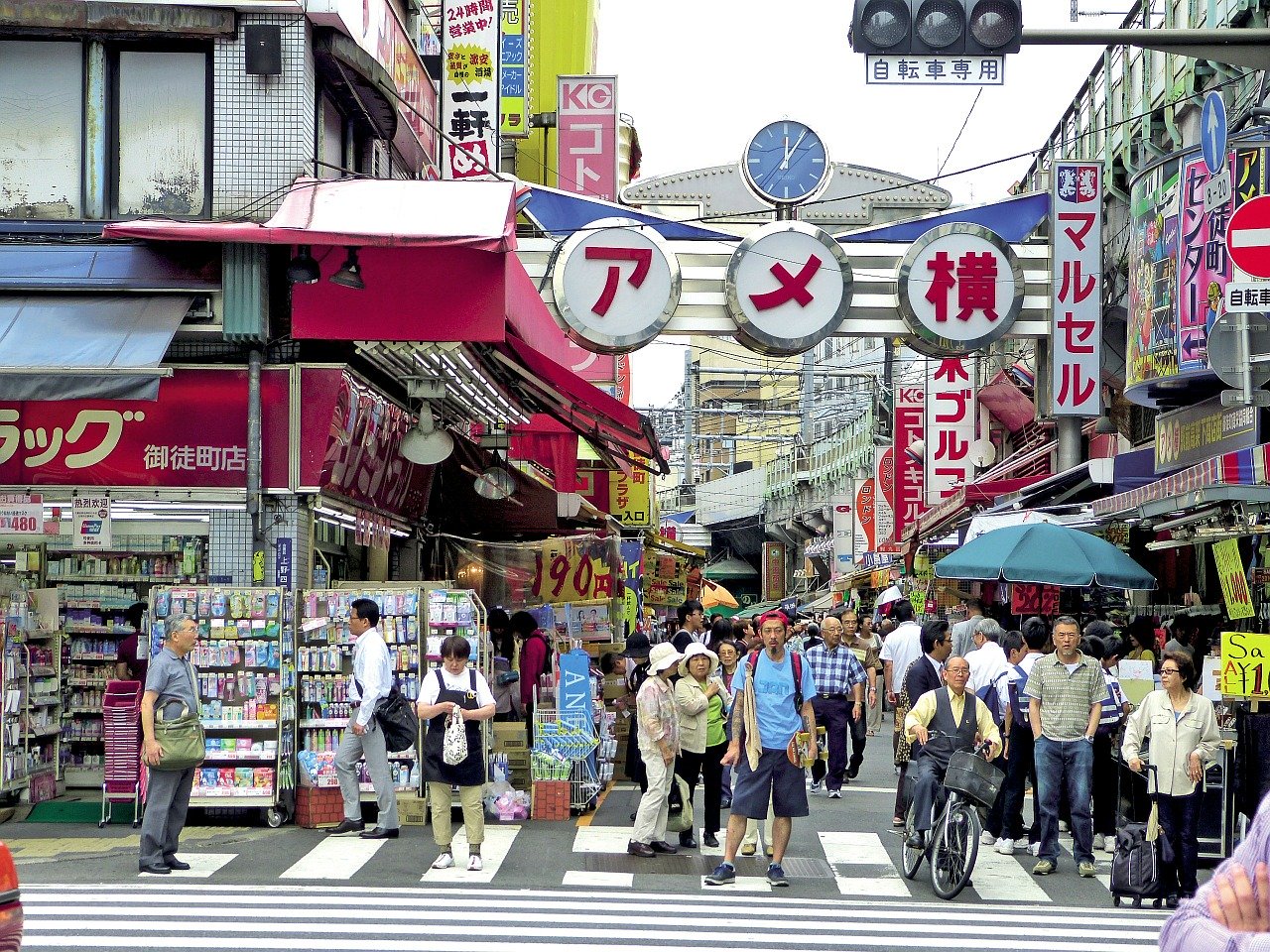
Sample Before
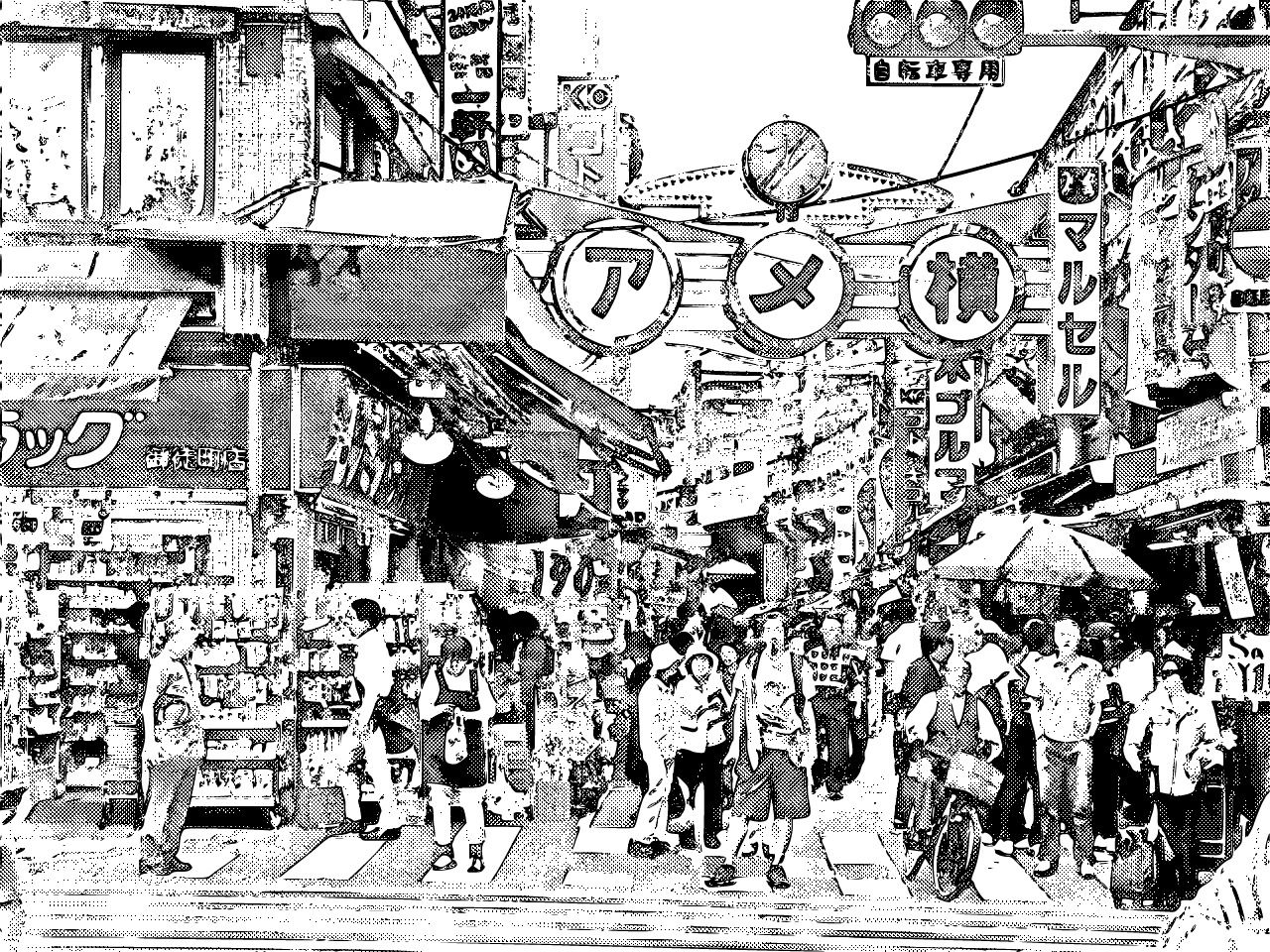
Sample After
About This Feature
Convert your photos, illustrations, or 3D CG renders into black-and-white manga style images using AI.
The output is automatically generated and looks like real manga — complete with line art, solid black areas, and screentones.
The first conversion takes about 30 seconds while the AI initializes. After that, reconverting the same image with different settings takes around 10 seconds.
The default settings work well out of the box, but you can also fine-tune brightness, pen pressure, pen type, and whether to apply screentones.
If the output looks too detailed or photorealistic, try reducing the source image to about half its original width and height before uploading.
Converting 3D CG renders instead of real photos tends to produce more manga-like background art.
Supported file formats are JPEG, PNG, GIF, BMP, and WebP. Both color and grayscale images are accepted.
The output is automatically generated and looks like real manga — complete with line art, solid black areas, and screentones.
The first conversion takes about 30 seconds while the AI initializes. After that, reconverting the same image with different settings takes around 10 seconds.
The default settings work well out of the box, but you can also fine-tune brightness, pen pressure, pen type, and whether to apply screentones.
If the output looks too detailed or photorealistic, try reducing the source image to about half its original width and height before uploading.
Converting 3D CG renders instead of real photos tends to produce more manga-like background art.
Supported file formats are JPEG, PNG, GIF, BMP, and WebP. Both color and grayscale images are accepted.
How to Use
-
1Choose Your ImageClick the "Browse" button or drag and drop an image onto the screen.
-
2ConvertClick the "CONVERT FOR FREE" button.
-
3DownloadClick the "DOWNLOAD" button.
DataChef Features

Easy and Free
Unlimited conversions for free.
No technical knowledge required.
Intuitive and user-friendly operation.
No technical knowledge required.
Intuitive and user-friendly operation.

No Registration Required
Available immediately after access.
Can be used without registering personal information.
Can be used without registering personal information.

Safe and Secure
Fully SSL encrypted communication.
Automatic file deletion by clicking "download".
Automatic file deletion by clicking "download".
Fast
High-speed site access
and rapid file conversion.
and rapid file conversion.
No Watermark
No watermark.
No attribution required.
No attribution required.
Commercial Use Available
Free for commercial use.
No need to contact us for commercial use permission.
No need to contact us for commercial use permission.
About "Brightness" and "Pen Pressure"

Brightness: 20 Pen Pressure: 3

Brightness: 50 Pen Pressure: 2

Brightness: 80 Pen Pressure: 1
Adjusting "Brightness" controls whether the scene feels light and airy or dark and heavy.
For a balanced look, increase "Pen Pressure" when "Brightness" is low, and decrease it when "Brightness" is high.
About "Pen Type"

G-Pen (Dip Pen) Only

Mapping Pen (Fine Pen) Only

Mapping Pen (Fine Pen) & G-Pen (Dip Pen)
■G-Pen (Dip Pen)
Produces strokes similar to a fountain pen — slightly thick overall, with line weight that varies with pen pressure.
Listed in the settings as "Dip Pen" for clarity.
■Mapping Pen (Fine Pen)
Produces much finer strokes than an ordinary ballpoint pen, with delicate line variation.
Listed in the settings as "Fine Pen" for clarity.
Both the G-Pen and the Mapping Pen are among the most common tools for drawing manga line art.
You can use either pen type alone or combine both.
About "Screentone"

Screentone: Use

Screentone: Don't Use
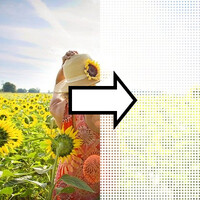
Screentones are adhesive sheets covered in tiny black dots, used in traditional manga to represent gray shading and mid-tones without actual gray ink.
They create shading effects and fill areas that are neither pure black nor pure white.
If you prefer a cleaner look without the dot pattern, you can turn screentones off in the settings.
About "Brightness" and "Pen Pressure"
Brightness: 20 Pen Pressure: 3
Brightness: 50 Pen Pressure: 2
Brightness: 80 Pen Pressure: 1
Adjusting "Brightness" controls whether the scene feels light and airy or dark and heavy.
For a balanced look, increase "Pen Pressure" when "Brightness" is low, and decrease it when "Brightness" is high.
About "Pen Type"
G-Pen (Dip Pen) Only
Mapping Pen (Fine Pen) Only
Mapping Pen (Fine Pen) & G-Pen (Dip Pen)
■G-Pen (Dip Pen)
Produces strokes similar to a fountain pen — slightly thick overall, with line weight that varies with pen pressure.
Listed in the settings as "Dip Pen" for clarity.
■Mapping Pen (Fine Pen)
Produces much finer strokes than an ordinary ballpoint pen, with delicate line variation.
Listed in the settings as "Fine Pen" for clarity.
Both the G-Pen and the Mapping Pen are among the most common tools for drawing manga line art.
You can use either pen type alone or combine both.
About "Screentone"
Screentone: Use
Screentone: Don't Use
Screentones are adhesive sheets covered in tiny black dots, used in traditional manga to represent gray shading and mid-tones without actual gray ink.
They create shading effects and fill areas that are neither pure black nor pure white.
If you prefer a cleaner look without the dot pattern, you can turn screentones off in the settings.
Related Features
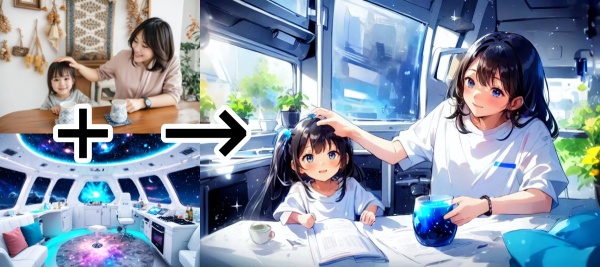
Photo to Anime AI
Turn your photos into anime-style illustrations with AI. Add text prompts to guide the style, or set the mood using concept art and color palettes.
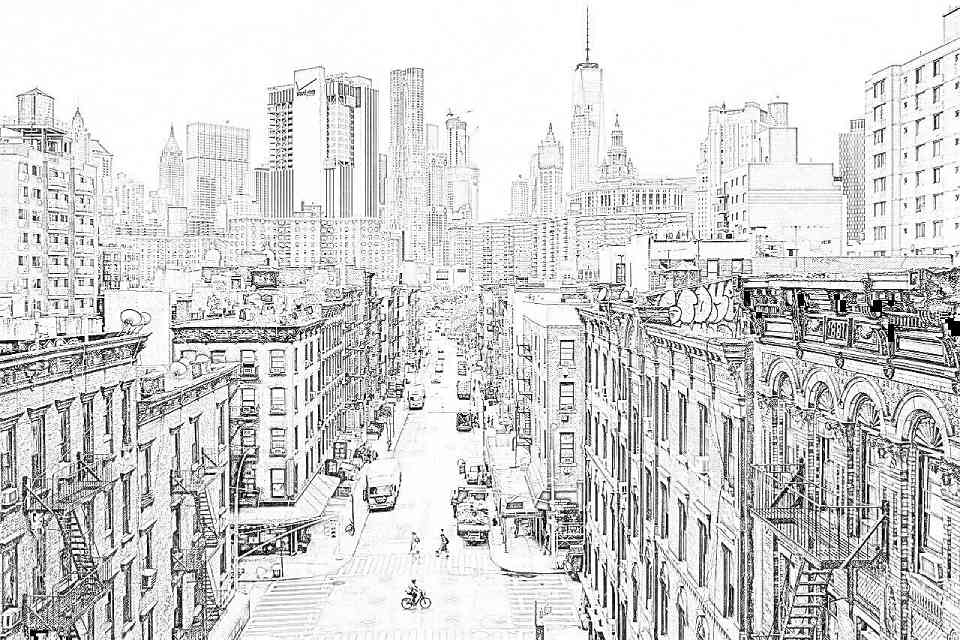
Picture to Line Drawing (Coloring Page)
Extract clean outlines from photos or illustrations in pen, pencil, or colored pencil styles. Usable as a coloring page or exported as a vector SVG.
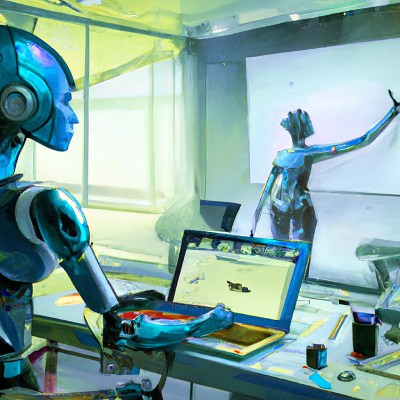
AI Image Generator (Text to Image)
Generate images from text with AI. Choose from multiple art styles, including manga.

Ad