
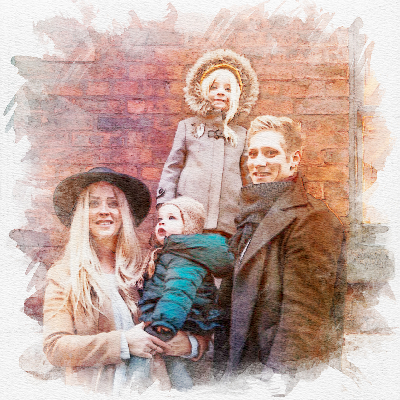
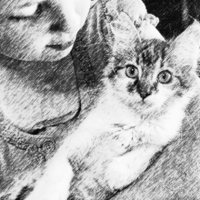

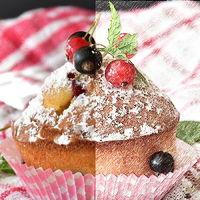
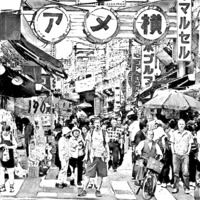
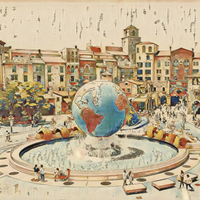
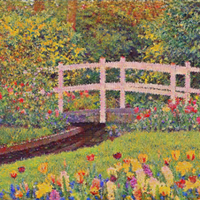
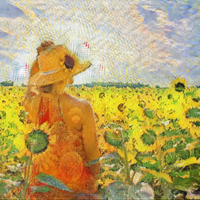


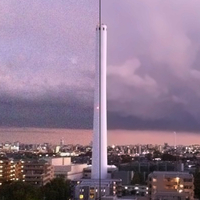
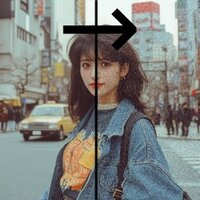

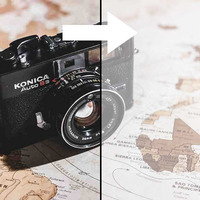
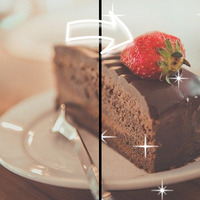

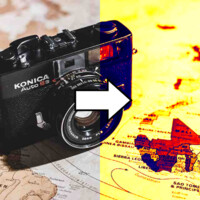
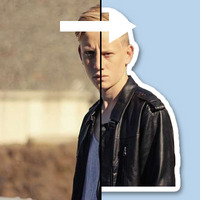
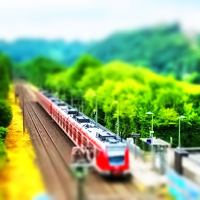
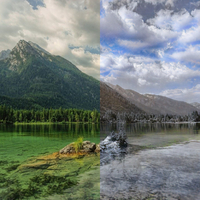
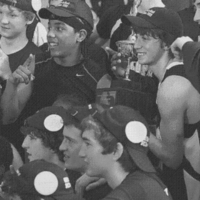
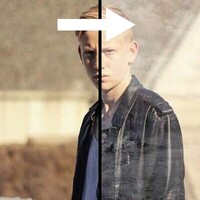
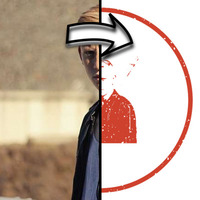

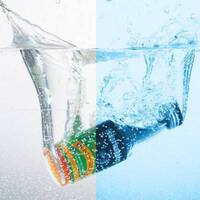




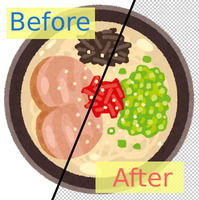
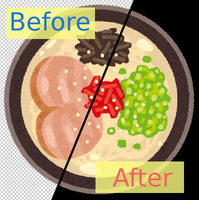
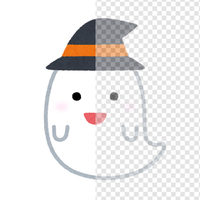
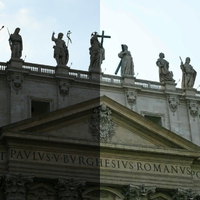
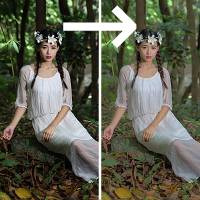
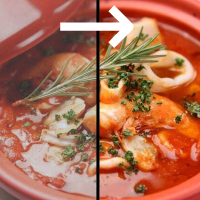
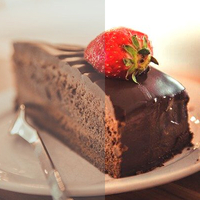

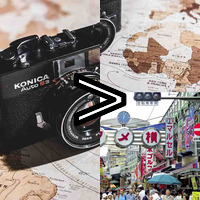

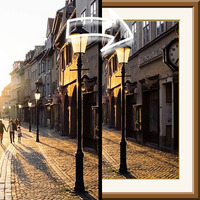
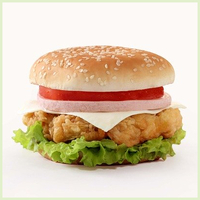








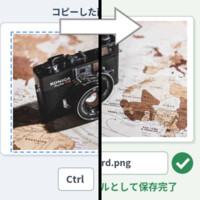
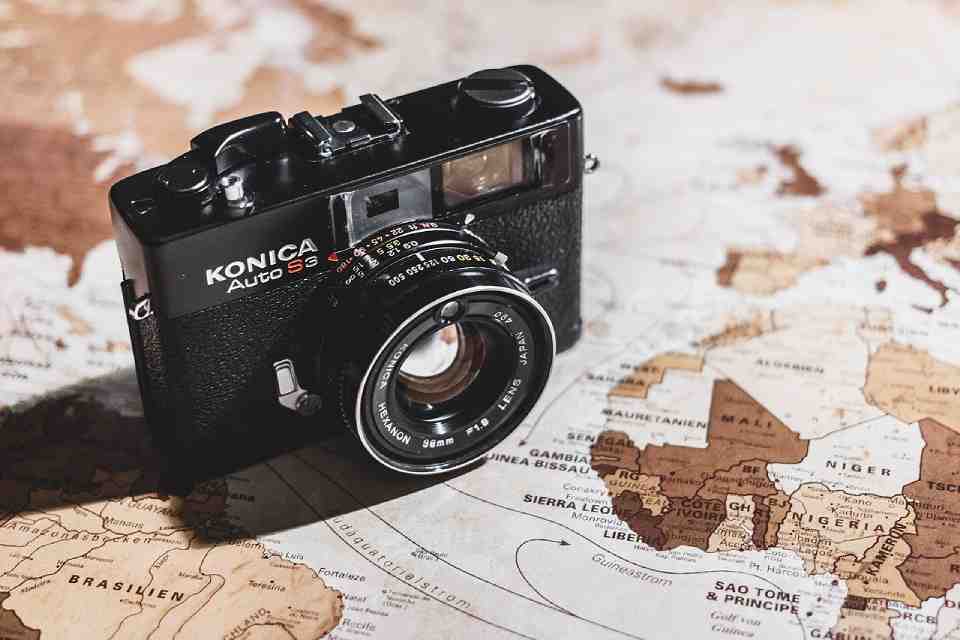
Sample Before
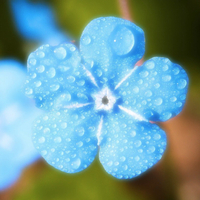
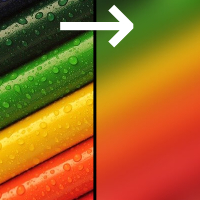
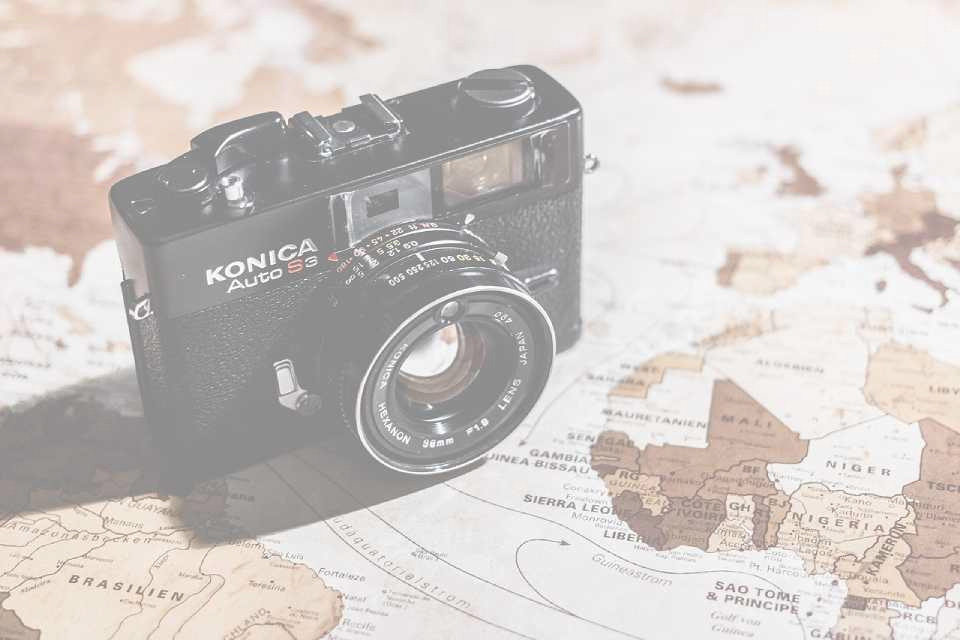
Sample After
About This Feature
This page lets you add a "color overlay" — a semi-transparent color layer over your image — online for free.
Overlay white and the whole image turns pale and light, making a bright background where black text reads easily. Overlay black and the whole image turns dark and calm, making a background where white text reads easily.
It's perfect for preparing a base when you want to put text over a photo — for a slide cover, blog featured image, or banner — but the text is hard to read against the busy photo.
You can also overlay any color besides white or black, so you can unify the image's tone to match a corporate or brand color.
Supported file formats are JPEG, PNG, GIF, BMP, WebP, and HEIC.
Overlay white and the whole image turns pale and light, making a bright background where black text reads easily. Overlay black and the whole image turns dark and calm, making a background where white text reads easily.
It's perfect for preparing a base when you want to put text over a photo — for a slide cover, blog featured image, or banner — but the text is hard to read against the busy photo.
You can also overlay any color besides white or black, so you can unify the image's tone to match a corporate or brand color.
Supported file formats are JPEG, PNG, GIF, BMP, WebP, and HEIC.
How to Use
-
1Choose Your ImageClick the "Browse" button or drag and drop an image onto the screen.
-
2ConvertClick the "CONVERT FOR FREE" button.
-
3DownloadClick the "DOWNLOAD" button.
DataChef Features

Easy and Free
Unlimited conversions for free.
No technical knowledge required.
Intuitive and user-friendly operation.
No technical knowledge required.
Intuitive and user-friendly operation.

No Registration Required
Available immediately after access.
Can be used without registering personal information.
Can be used without registering personal information.

Safe and Secure
Fully SSL encrypted communication.
Automatic file deletion by clicking "download".
Automatic file deletion by clicking "download".

Fast
High-speed site access
and rapid file conversion.
and rapid file conversion.
No Watermark
No watermark.
No attribution required.
No attribution required.
Commercial Use Available
Free for commercial use.
No need to contact us for commercial use permission.
No need to contact us for commercial use permission.
What Is a Color Overlay?
A color overlay is the edit of laying a single semi-transparent film of color (a layer) over an image.
In design tools like Photoshop and Canva it's the classic technique of adding a fill layer and lowering its opacity, but here you get the same result just by uploading an image and choosing a color and strength.
Unlike brightness or contrast correction, this is a color-tint layer that pulls the whole image toward the chosen color, so it softens how loud the image is while keeping the photo's atmosphere.
About the Settings
- Overlay Color
"White (lighten)" makes the image pale and bright, a base where black text reads easily. "Black (darken)" makes the image dark and calm, a base where white text stands out. "Pick a Color" lets you overlay any color you like (such as a brand color) with the color picker.
- Overlay Strength
How strong the color layer is. The lighter it is, the more the original image shows through; the stronger it is, the closer it gets to a solid fill of one color. For a base to put text on, around 50% is recommended.
- Blur a Little Too
When checked, the image is lightly blurred as the color is overlaid. The fine detail of the photo becomes less prominent, making text on top even easier to read — a classic combination.
Example Uses
People making presentations lightening a slide's cover photo so the title text reads easily
Bloggers and web designers making a base for text to sit on over a featured or hero image
Shop social-media managers darkening a banner photo so white campaign text stands out
Lightly overlaying a corporate color on company-site photos to unify the whole site's tone
What Is a Color Overlay?
A color overlay is the edit of laying a single semi-transparent film of color (a layer) over an image.
In design tools like Photoshop and Canva it's the classic technique of adding a fill layer and lowering its opacity, but here you get the same result just by uploading an image and choosing a color and strength.
Unlike brightness or contrast correction, this is a color-tint layer that pulls the whole image toward the chosen color, so it softens how loud the image is while keeping the photo's atmosphere.
About the Settings
- Overlay Color
"White (lighten)" makes the image pale and bright, a base where black text reads easily. "Black (darken)" makes the image dark and calm, a base where white text stands out. "Pick a Color" lets you overlay any color you like (such as a brand color) with the color picker. - Overlay Strength
How strong the color layer is. The lighter it is, the more the original image shows through; the stronger it is, the closer it gets to a solid fill of one color. For a base to put text on, around 50% is recommended. - Blur a Little Too
When checked, the image is lightly blurred as the color is overlaid. The fine detail of the photo becomes less prominent, making text on top even easier to read — a classic combination.
Example Uses
People making presentations lightening a slide's cover photo so the title text reads easily
Bloggers and web designers making a base for text to sit on over a featured or hero image
Shop social-media managers darkening a banner photo so white campaign text stands out
Lightly overlaying a corporate color on company-site photos to unify the whole site's tone

Ad