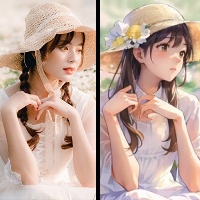
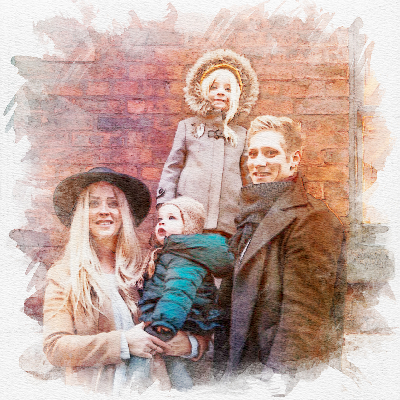

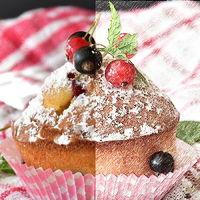
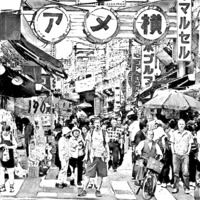
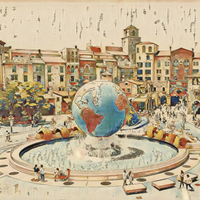
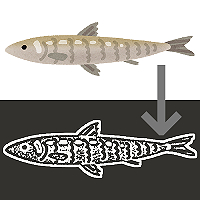
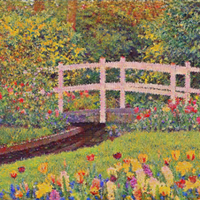
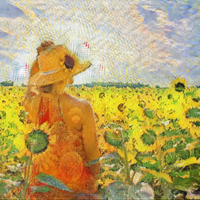
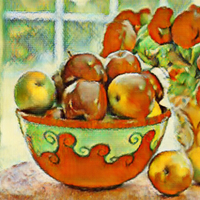
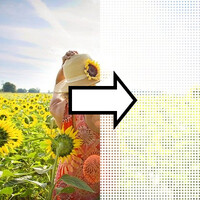
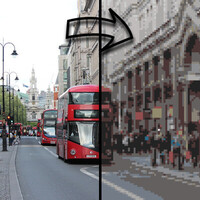
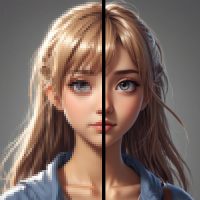


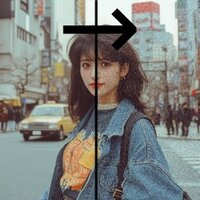

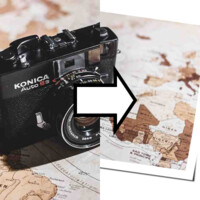
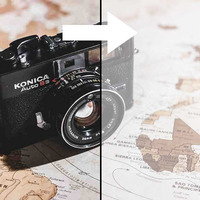
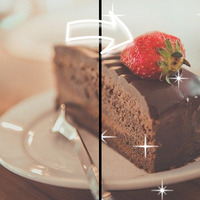

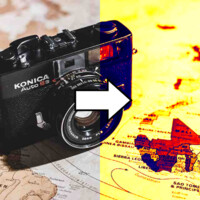
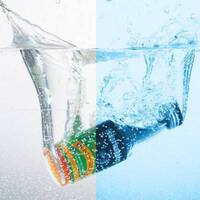

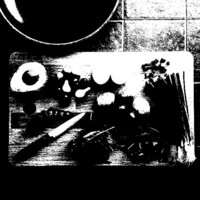


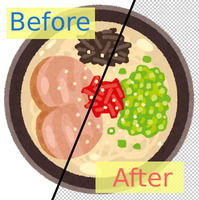
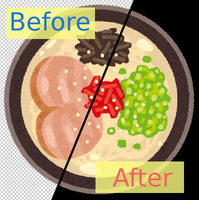
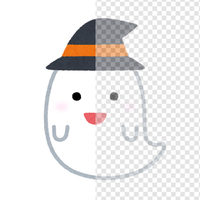
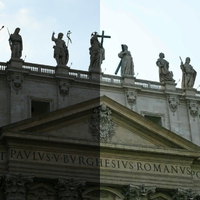
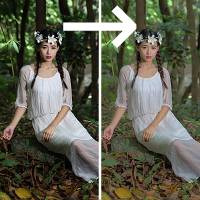
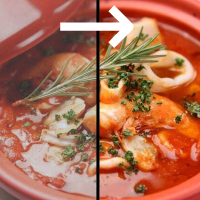
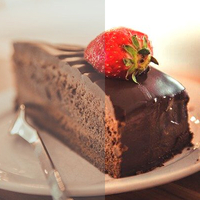

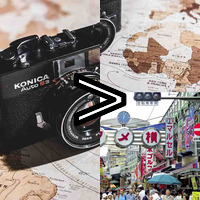
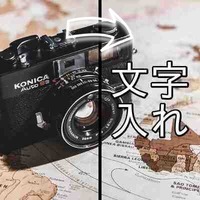
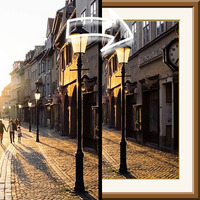
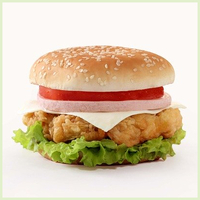

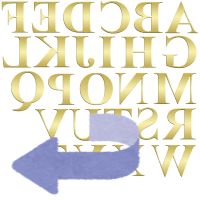




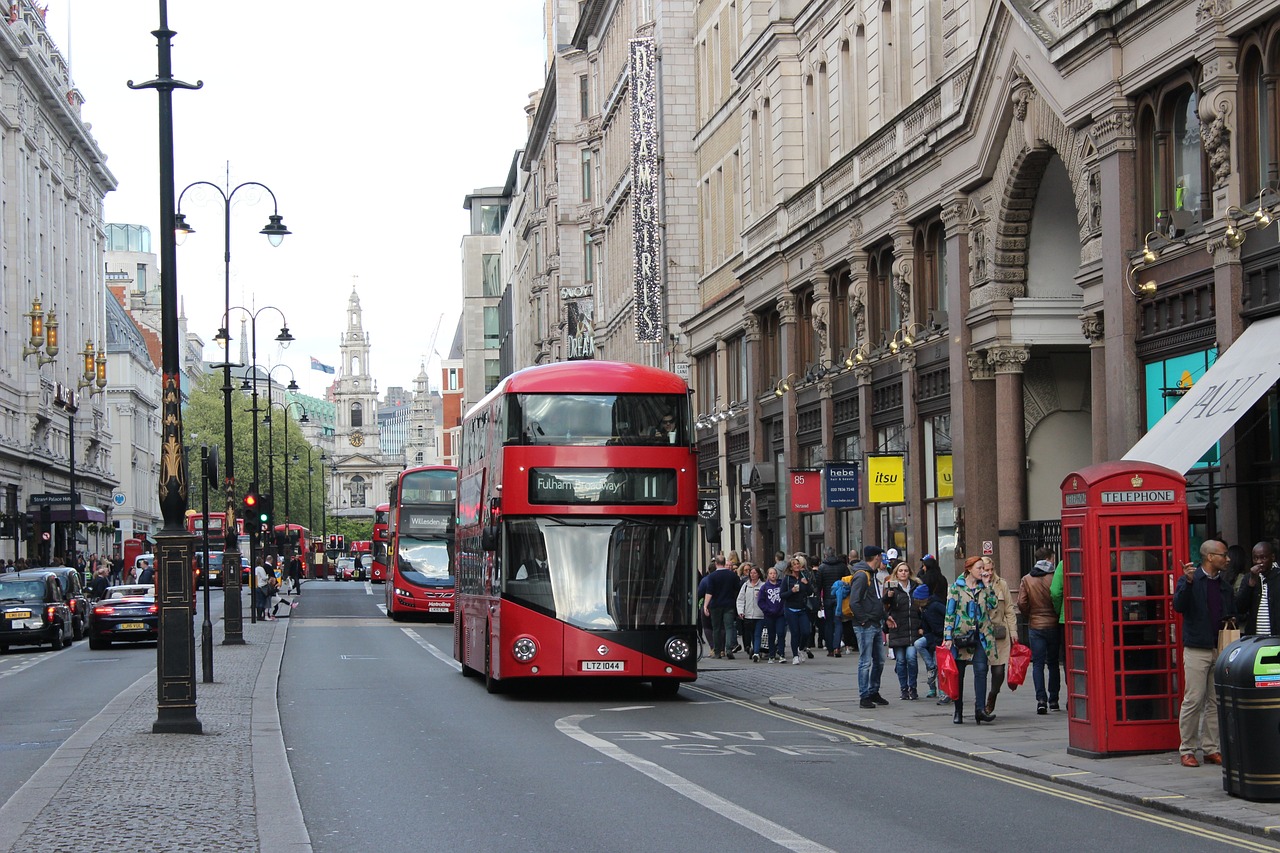
Sample Before
Sample After
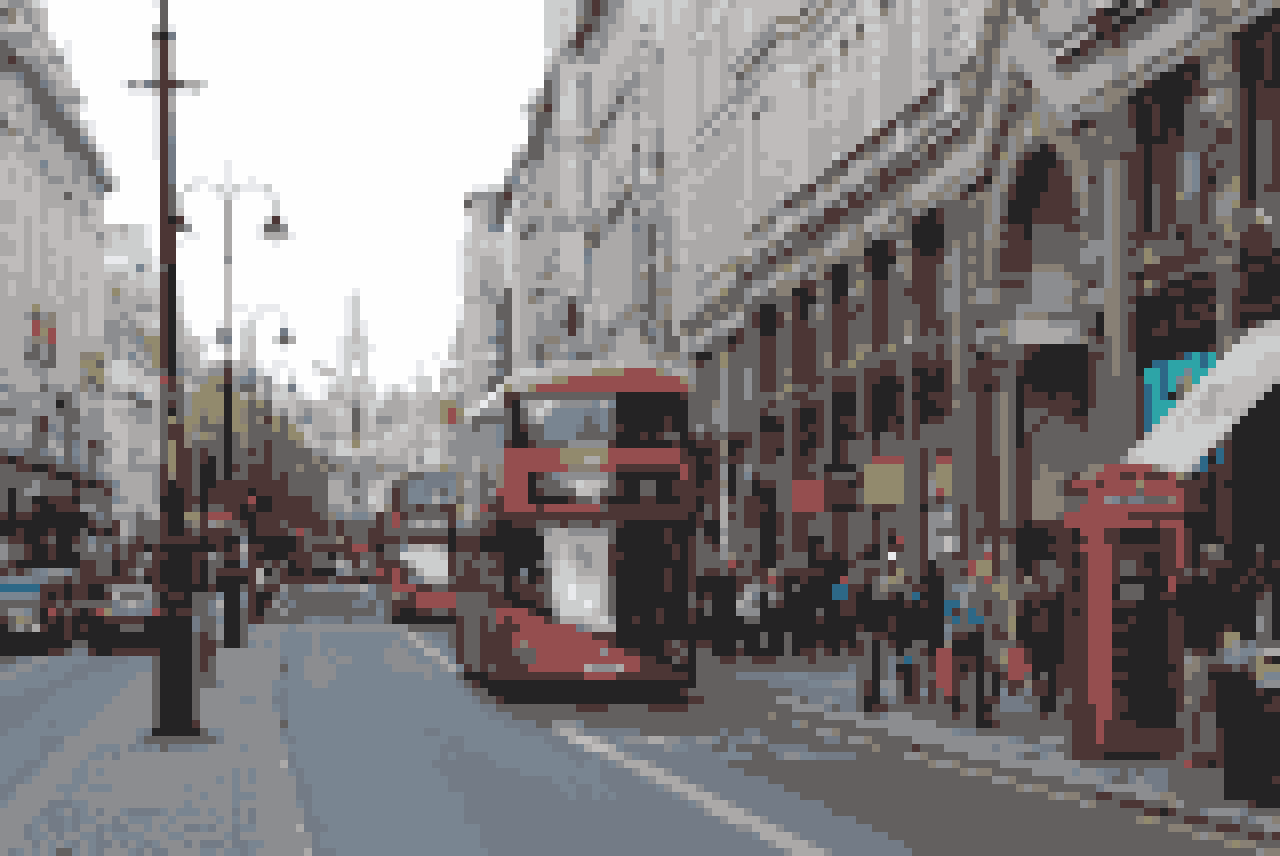
Table of Contents
About This Feature
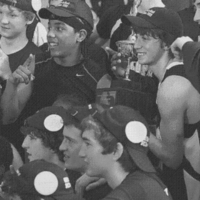
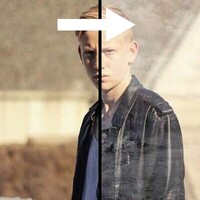
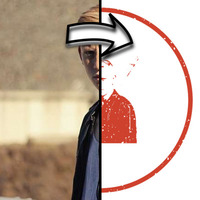
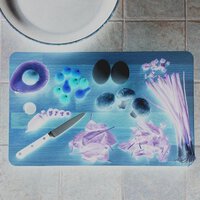
This page converts photos and illustrations into pixel art images.
By rebuilding the image from square dots (pixels) and reducing the number of colors, it takes on the nostalgic, characterful feel of retro games from the NES and Game Boy era.
You can intuitively choose the pixel size (the size of one dot), the number of colors (8, 16, 32, or full color), and whether to add outlines, with no expertise required.
Supported file formats are JPEG, PNG, GIF, BMP, WebP, and HEIC.
By rebuilding the image from square dots (pixels) and reducing the number of colors, it takes on the nostalgic, characterful feel of retro games from the NES and Game Boy era.
You can intuitively choose the pixel size (the size of one dot), the number of colors (8, 16, 32, or full color), and whether to add outlines, with no expertise required.
Supported file formats are JPEG, PNG, GIF, BMP, WebP, and HEIC.
How to Use
-
1Choose Your ImageClick the "Browse" button or drag and drop an image onto the screen.
-
2ConvertClick the "CONVERT FOR FREE" button.
-
3DownloadClick the "DOWNLOAD" button.
DataChef Features

Easy and Free
Unlimited conversions for free.
No technical knowledge required.
Intuitive and user-friendly operation.
No technical knowledge required.
Intuitive and user-friendly operation.

No Registration Required
Available immediately after access.
Can be used without registering personal information.
Can be used without registering personal information.

Safe and Secure
Fully SSL encrypted communication.
Automatic file deletion by clicking "download".
Automatic file deletion by clicking "download".

Fast
High-speed site access
and rapid file conversion.
and rapid file conversion.
No Watermark
No watermark.
No attribution required.
No attribution required.
Commercial Use Available
Free for commercial use.
No need to contact us for commercial use permission.
No need to contact us for commercial use permission.
What Is Pixel Art?
Pixel art is a technique of forming a picture by arranging square dots (pixels).
Old game consoles could only display limited resolution and colors, so artists worked creatively with few dots and few colors, and that distinctive look is still loved today as a retro, cute, characterful style.
This page shrinks your image, scales it back up in a way that keeps the dot edges crisp, and reduces the colors, so you can easily turn your own photos and illustrations into pixel art.
About the Settings
- Pixel Size
Use the slider to set the size of one dot. The higher the number, the larger and chunkier the dots, for a more retro-game look. Lower values give a fine mosaic that keeps more of the original image.
- Number of Colors
Choose how many colors to use. "8 Colors" gives a bold, early-NES look, "16 Colors" is the classic retro-console palette, "32 Colors" keeps gentle gradation, and "Full Color" only pixelates without reducing colors.
- Emphasize Outlines
When checked, it adds a dark edge (outline) along color boundaries, for the crisp look of hand-drawn pixel art.
Example Uses
Game developers creating pixel art assets or mockup drafts for indie games and apps.
Illustrators reworking their own art into pixel art for a social media icon.
Making retro-game-style social media posts and thumbnails from a photo.
Designing 8-bit, retro-style posters, T-shirts, and merchandise.
What Is Pixel Art?
Pixel art is a technique of forming a picture by arranging square dots (pixels).
Old game consoles could only display limited resolution and colors, so artists worked creatively with few dots and few colors, and that distinctive look is still loved today as a retro, cute, characterful style.
This page shrinks your image, scales it back up in a way that keeps the dot edges crisp, and reduces the colors, so you can easily turn your own photos and illustrations into pixel art.
About the Settings
- Pixel Size
Use the slider to set the size of one dot. The higher the number, the larger and chunkier the dots, for a more retro-game look. Lower values give a fine mosaic that keeps more of the original image. - Number of Colors
Choose how many colors to use. "8 Colors" gives a bold, early-NES look, "16 Colors" is the classic retro-console palette, "32 Colors" keeps gentle gradation, and "Full Color" only pixelates without reducing colors. - Emphasize Outlines
When checked, it adds a dark edge (outline) along color boundaries, for the crisp look of hand-drawn pixel art.
Example Uses
Game developers creating pixel art assets or mockup drafts for indie games and apps.
Illustrators reworking their own art into pixel art for a social media icon.
Making retro-game-style social media posts and thumbnails from a photo.
Designing 8-bit, retro-style posters, T-shirts, and merchandise.

Ad