
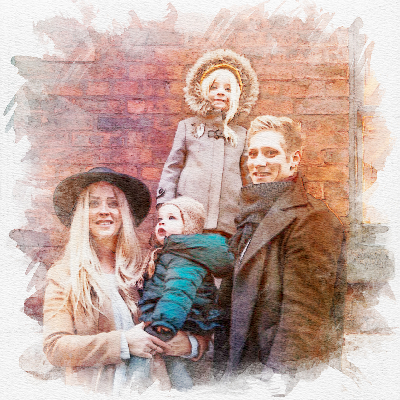

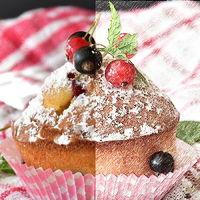
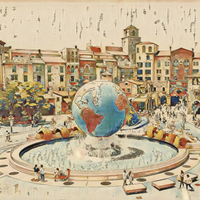
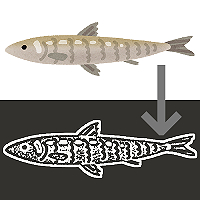
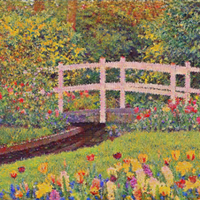
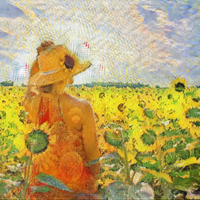


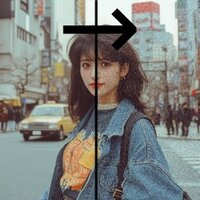

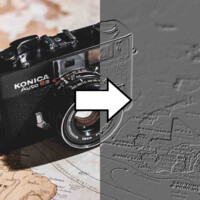
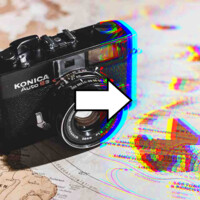
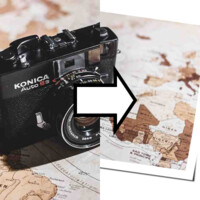
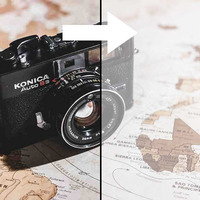
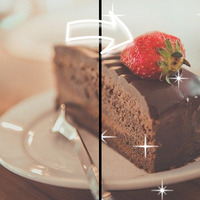

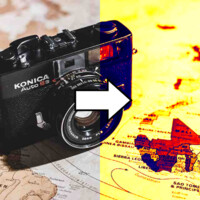
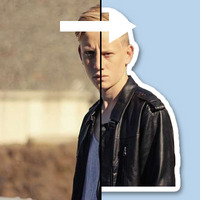

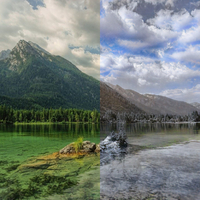
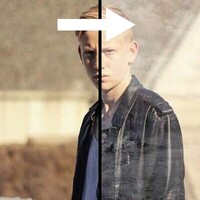
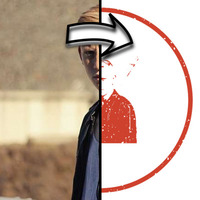

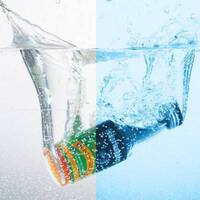




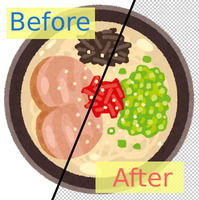
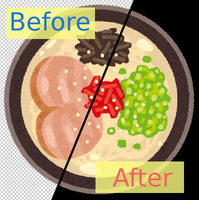
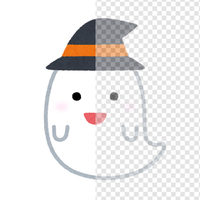
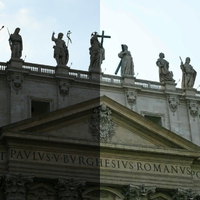
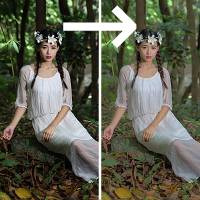
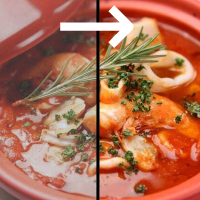
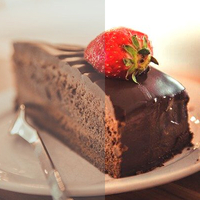

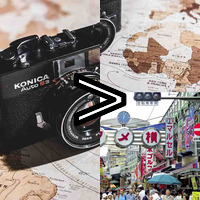

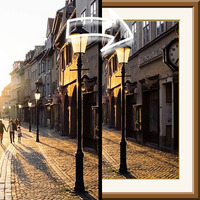










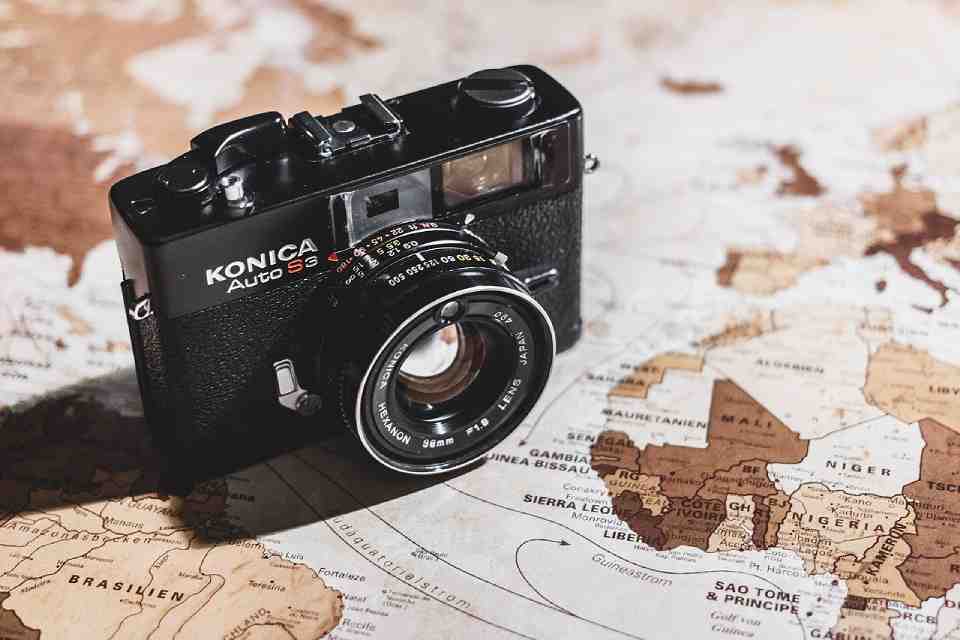
Sample Before
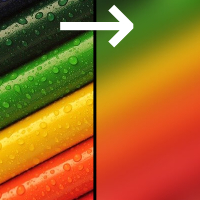
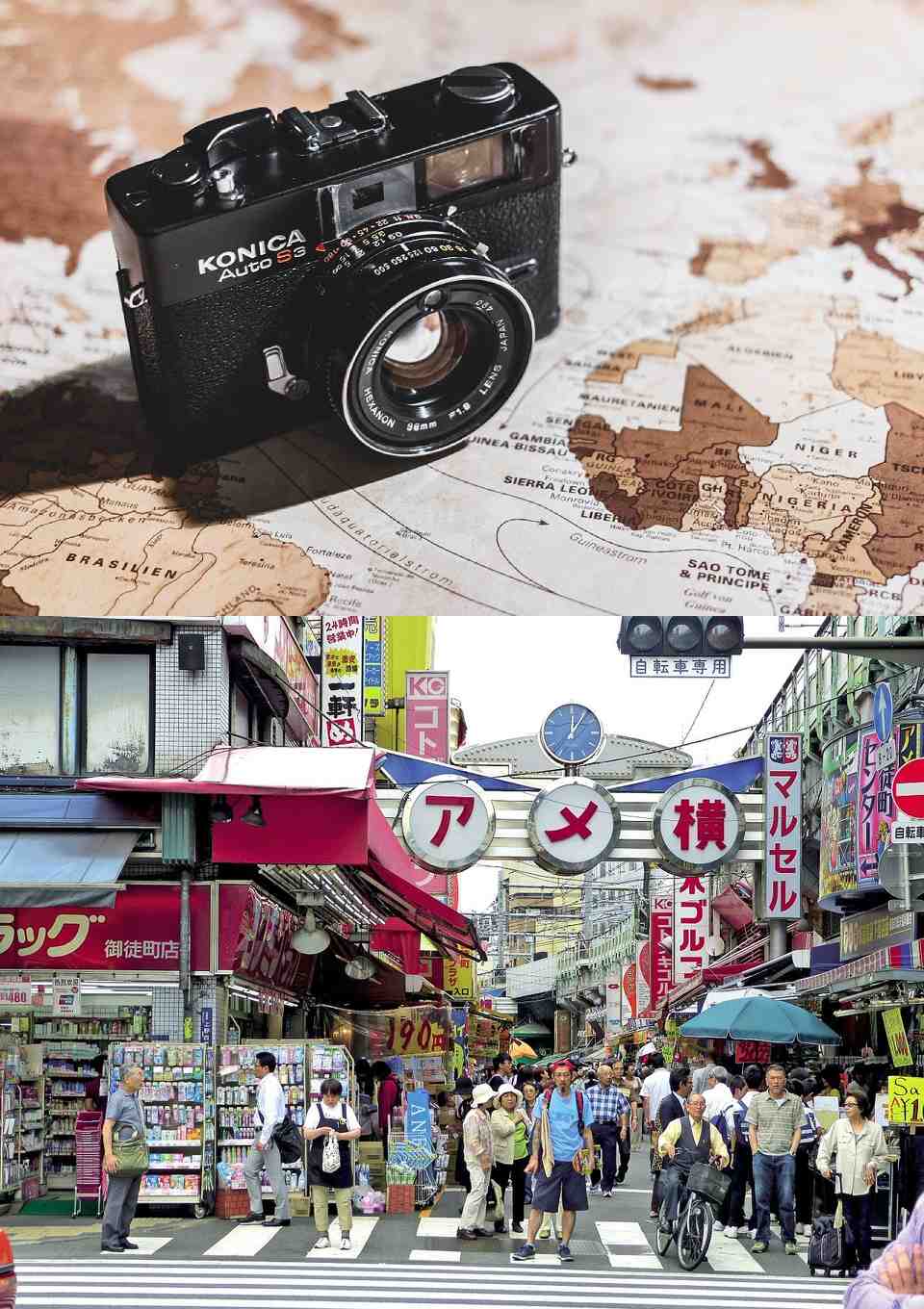
Sample After
About This Feature
This page lets you combine multiple photos and images into a single image — stacked vertically or placed side by side — online and for free.
It is ready for any time you want to turn several pictures into one: photos shown together, before-and-after comparisons, multiple product shots, or a set of screenshots. No complicated software — just your browser, quickly.
Upload the first image, then add the rest (up to 9 more, 10 in total) from "Settings". Choose a vertical or horizontal layout, and even images of different sizes are automatically aligned and combined cleanly.
Supported file formats are JPEG, PNG, GIF, BMP, WebP, and HEIC.
It is ready for any time you want to turn several pictures into one: photos shown together, before-and-after comparisons, multiple product shots, or a set of screenshots. No complicated software — just your browser, quickly.
Upload the first image, then add the rest (up to 9 more, 10 in total) from "Settings". Choose a vertical or horizontal layout, and even images of different sizes are automatically aligned and combined cleanly.
Supported file formats are JPEG, PNG, GIF, BMP, WebP, and HEIC.
How to Use
-
1Choose Your ImageClick the "Browse" button or drag and drop an image onto the screen.
-
2ConvertClick the "CONVERT FOR FREE" button.
-
3DownloadClick the "DOWNLOAD" button.
DataChef Features

Easy and Free
Unlimited conversions for free.
No technical knowledge required.
Intuitive and user-friendly operation.
No technical knowledge required.
Intuitive and user-friendly operation.

No Registration Required
Available immediately after access.
Can be used without registering personal information.
Can be used without registering personal information.

Safe and Secure
Fully SSL encrypted communication.
Automatic file deletion by clicking "download".
Automatic file deletion by clicking "download".

Fast
High-speed site access
and rapid file conversion.
and rapid file conversion.
No Watermark
No watermark.
No attribution required.
No attribution required.

Commercial Use Available
Free for commercial use.
No need to contact us for commercial use permission.
No need to contact us for commercial use permission.
What Is Combining Images?
Combining images means placing several pictures together without gaps to make one larger image — for example, joining two photos top and bottom, or lining three up in a single horizontal row.
Merging them into one image instead of sending separate files makes posting to social media, pasting into documents, and sharing with others far easier.
Choosing the Direction
- Combine Vertically (stack top to bottom)
Stacks the images from top to bottom. Their widths are aligned automatically, so even images of differing widths stack up neatly without jagged edges, giving you a tall combined image.
- Combine Horizontally (side by side)
Lines the images up from left to right. Their heights are aligned automatically, so even images of differing heights line up evenly, giving you a wide combined image.
About the Background Color
Any gaps left after aligning sizes, and the background behind transparent areas of a PNG, are filled with the color you set here. Choose white, black, or any color you like.
Adjust it when you want the filled space to blend in with your combined image.
Example Uses
Placing before-and-after photos side by side to make a single comparison image
Stacking multiple product shots vertically into one overview image
Joining several screenshots to lay out a step-by-step guide
Combining several photos into a collage-style image for a social media post
What Is Combining Images?
Combining images means placing several pictures together without gaps to make one larger image — for example, joining two photos top and bottom, or lining three up in a single horizontal row.
Merging them into one image instead of sending separate files makes posting to social media, pasting into documents, and sharing with others far easier.
Choosing the Direction
- Combine Vertically (stack top to bottom)
Stacks the images from top to bottom. Their widths are aligned automatically, so even images of differing widths stack up neatly without jagged edges, giving you a tall combined image. - Combine Horizontally (side by side)
Lines the images up from left to right. Their heights are aligned automatically, so even images of differing heights line up evenly, giving you a wide combined image.
About the Background Color
Any gaps left after aligning sizes, and the background behind transparent areas of a PNG, are filled with the color you set here. Choose white, black, or any color you like.
Adjust it when you want the filled space to blend in with your combined image.
Example Uses
Placing before-and-after photos side by side to make a single comparison image
Stacking multiple product shots vertically into one overview image
Joining several screenshots to lay out a step-by-step guide
Combining several photos into a collage-style image for a social media post

Ad