
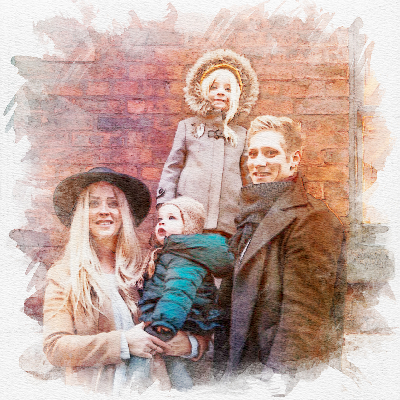

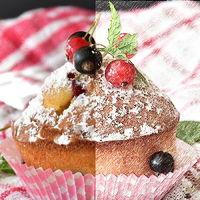



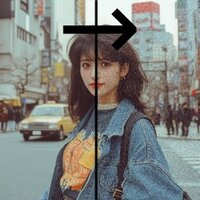

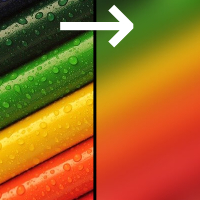
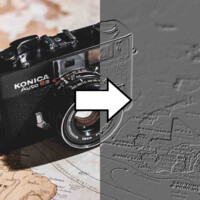
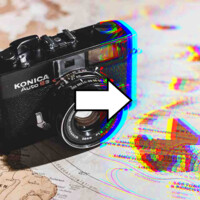
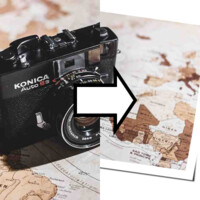
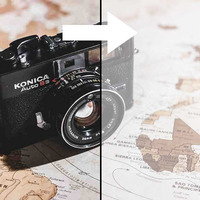
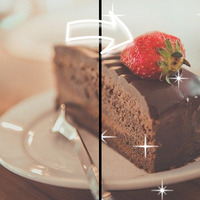

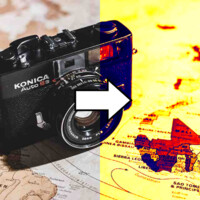
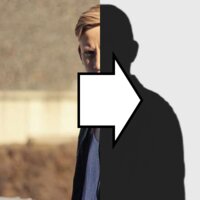
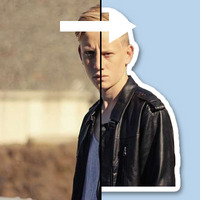
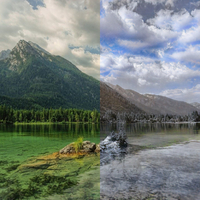
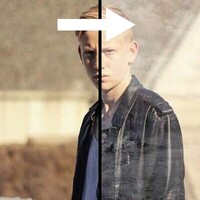
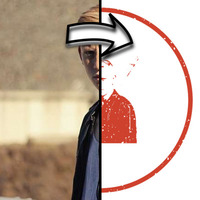

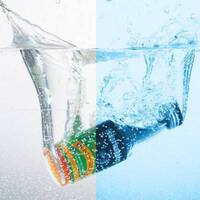




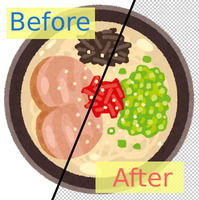
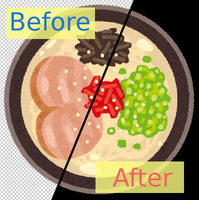

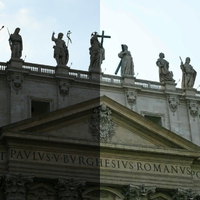
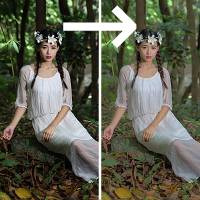
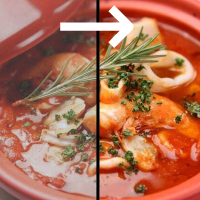

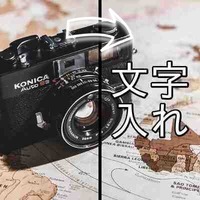
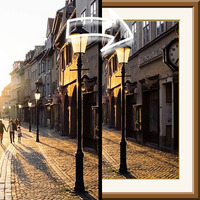










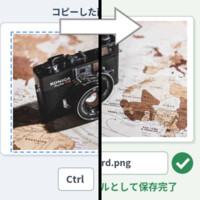
Sample Before
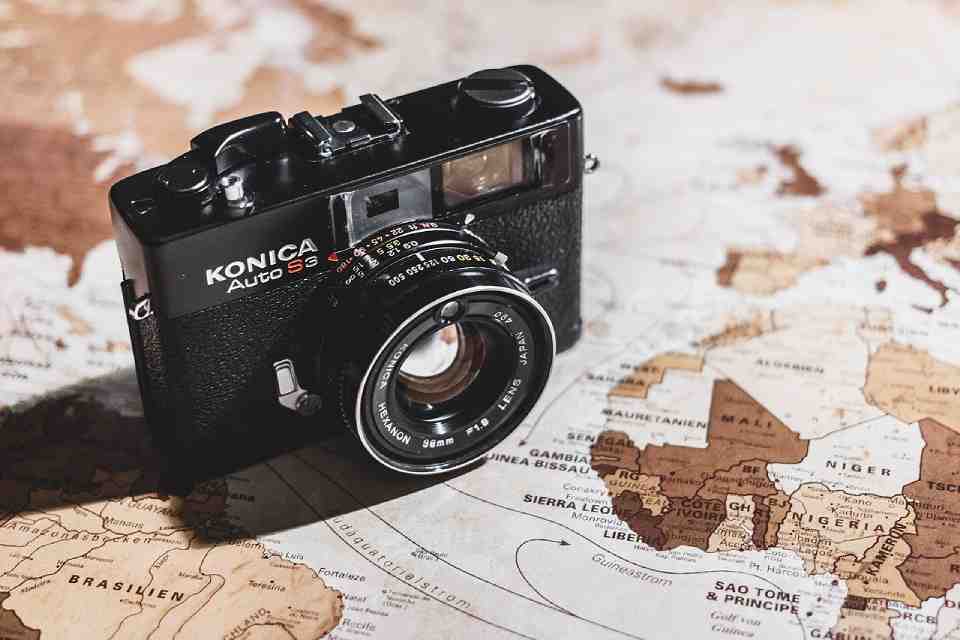
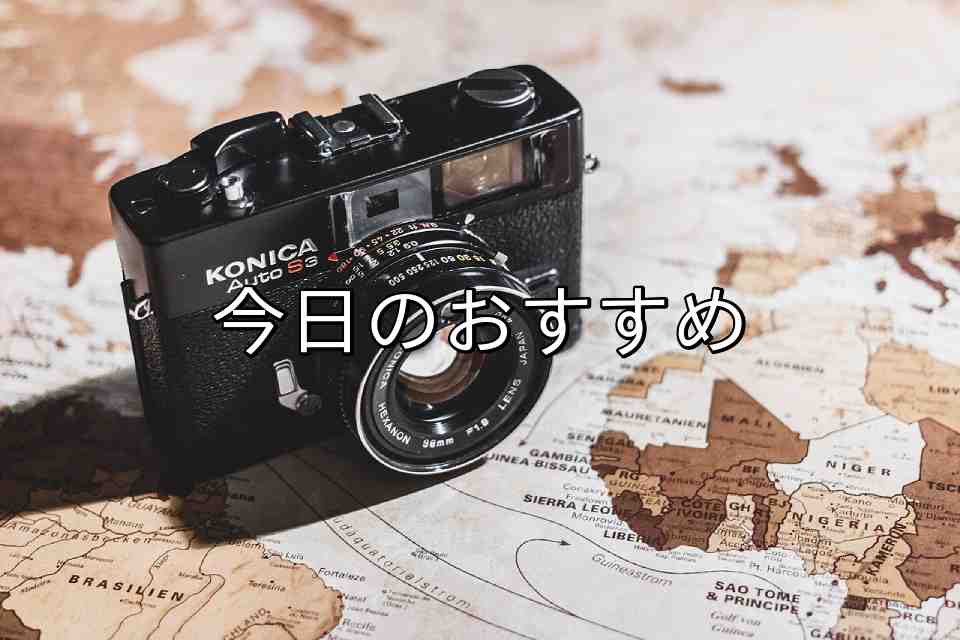
Sample After
About This Feature
This page lets you write any text you like on top of images and photos. Japanese text is supported too.
Whether you want to add a quick caption to a photo, put a title on a thumbnail, or label an instructional image, you can do it right in your browser — no image editing software to install.
Choose the text position (9 spots from top left to bottom right), size, color, and font (sans-serif or serif). Adding an outline keeps the text crisp and readable even over busy photo backgrounds.
Supported file formats are JPEG, PNG, GIF, BMP, WebP, and HEIC.
Whether you want to add a quick caption to a photo, put a title on a thumbnail, or label an instructional image, you can do it right in your browser — no image editing software to install.
Choose the text position (9 spots from top left to bottom right), size, color, and font (sans-serif or serif). Adding an outline keeps the text crisp and readable even over busy photo backgrounds.
Supported file formats are JPEG, PNG, GIF, BMP, WebP, and HEIC.
How to Use
-
1Choose Your ImageClick the "Browse" button or drag and drop an image onto the screen.
-
2ConvertClick the "CONVERT FOR FREE" button.
-
3DownloadClick the "DOWNLOAD" button.
DataChef Features

Easy and Free
Unlimited conversions for free.
No technical knowledge required.
Intuitive and user-friendly operation.
No technical knowledge required.
Intuitive and user-friendly operation.

No Registration Required
Available immediately after access.
Can be used without registering personal information.
Can be used without registering personal information.

Safe and Secure
Fully SSL encrypted communication.
Automatic file deletion by clicking "download".
Automatic file deletion by clicking "download".

Fast
High-speed site access
and rapid file conversion.
and rapid file conversion.
No Watermark
No watermark.
No attribution required.
No attribution required.

Commercial Use Available
Free for commercial use.
No need to contact us for commercial use permission.
No need to contact us for commercial use permission.
When to Use This
Adding text to an image is the classic way to get your message across at a glance.
It works in all kinds of situations: a caption on a photo for social media or a blog, title text on a video or blog thumbnail, a "Free Shipping" callout on a marketplace listing, or a notice on internal documents and signage.
About the Settings
- Text to Add
Type the text you want on the image. Letters, numbers, symbols, and Japanese are all supported. Line breaks create multiple lines.
- Text Position
Choose from 9 spots, from top left through center to bottom right. Picking a spot that does not cover your subject gives the most natural result.
- Text Size (% of image width)
Set as a percentage of the image width. The higher the number, the bigger the text. Go large for titles, small for captions and signatures.
- Font
Choose between "Sans-serif (Gothic)" — clean and easy to read — and "Serif (Mincho)" — elegant with a classic, Japanese feel.
- Text Color
Pick any color you like. On photos, white text with a black outline is the classic, most readable combination.
- Outline the Text (easier to read)
Draws a border in another color around the text. It makes the text stand out clearly even on busy photo backgrounds, so we recommend leaving it on.
Use Cases
Put title text on YouTube and blog thumbnails
Add a caption or date to photos you post on social media
Cafes and salons adding text to announcements and menu images
Add "Free Shipping" or "Brand New" to marketplace product images
Photographers and illustrators signing or crediting their work
When to Use This
Adding text to an image is the classic way to get your message across at a glance.
It works in all kinds of situations: a caption on a photo for social media or a blog, title text on a video or blog thumbnail, a "Free Shipping" callout on a marketplace listing, or a notice on internal documents and signage.
About the Settings
- Text to Add
Type the text you want on the image. Letters, numbers, symbols, and Japanese are all supported. Line breaks create multiple lines. - Text Position
Choose from 9 spots, from top left through center to bottom right. Picking a spot that does not cover your subject gives the most natural result. - Text Size (% of image width)
Set as a percentage of the image width. The higher the number, the bigger the text. Go large for titles, small for captions and signatures. - Font
Choose between "Sans-serif (Gothic)" — clean and easy to read — and "Serif (Mincho)" — elegant with a classic, Japanese feel. - Text Color
Pick any color you like. On photos, white text with a black outline is the classic, most readable combination. - Outline the Text (easier to read)
Draws a border in another color around the text. It makes the text stand out clearly even on busy photo backgrounds, so we recommend leaving it on.
Use Cases
Put title text on YouTube and blog thumbnails
Add a caption or date to photos you post on social media
Cafes and salons adding text to announcements and menu images
Add "Free Shipping" or "Brand New" to marketplace product images
Photographers and illustrators signing or crediting their work

Ad